
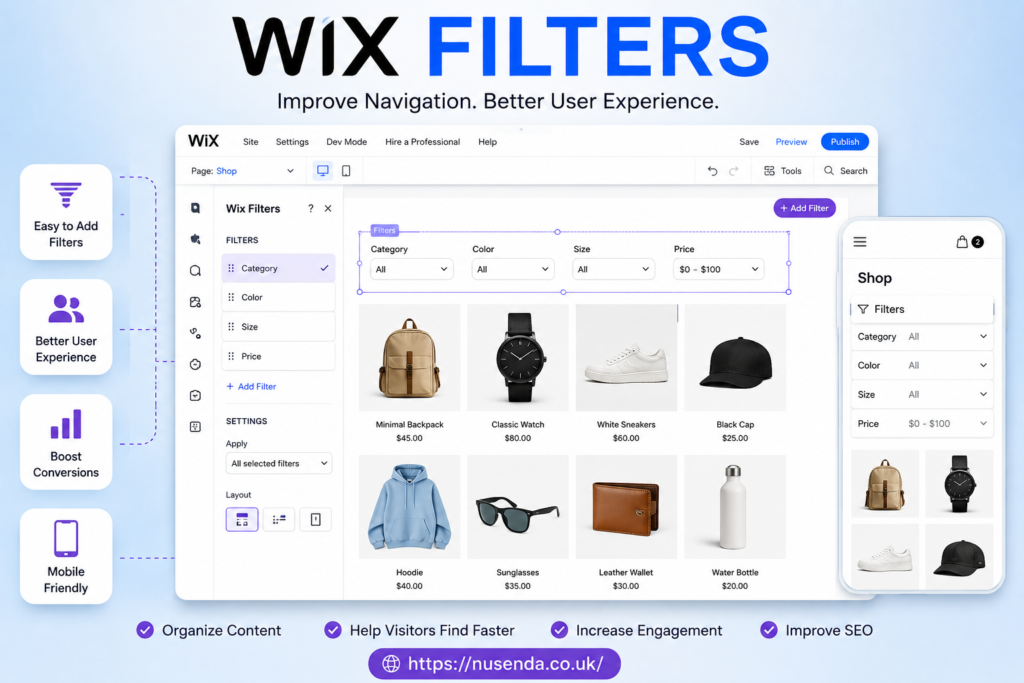
If you’ve ever browsed a website and struggled to find exactly what you were looking for, chances are the site didn’t have proper filtering in place. That’s where Wix filters come in. Whether you’re running an online store, a portfolio, or a content-heavy website, filters can completely transform how users interact with your content.
In this guide, I’ll walk you through everything you need to know about Wix filters.from what they are to how you can use them effectively to improve your website experience.
What Are Wix Filters?
At its core, Wix filters are tools that allow users to sort and narrow down content on your website based on specific criteria. If you’ve ever used filters on an online store (like selecting size, price, or color), you already understand the concept.
The platform Wix makes it easy to add these filters without needing advanced coding skills. That’s one of the reasons Wix remains so popular among beginners and professionals alike.
Filters help visitors quickly find what they need, which improves usability and keeps them engaged longer.
Why Wix Filters Matter for Your Website
You might be wondering—are filters really that important? The short answer is yes.
Here’s why Wix filters can make a big difference:
- Improved user experience: Visitors don’t have to scroll endlessly
- Higher engagement: People stay longer when navigation is easy
- Better conversions: Especially important for eCommerce websites
- Professional appearance: Organized content looks more credible
Think about it this way: if your website feels easy to use, people are more likely to trust it—and that trust often leads to action.
Types of Wix Filters You Can Use
Wix offers several types of filters depending on the kind of site you’re building. Let’s break them down.
1. Dropdown Filters
These are simple and clean. Users click a dropdown menu and select an option.
Best for:
- Categories
- Locations
- Product types
2. Checkbox Filters
Checkbox filters allow users to select multiple options at once.
Best for:
- Features (e.g., Wi-Fi, parking)
- Product attributes
3. Range Filters
These are commonly used for prices or dates.
Best for:
- Price ranges
- Timeframes
4. Search-Based Filters
This lets users type what they’re looking for and refine results instantly.
Best for:
- Large databases
- Blogs or directories

How to Add Filters in Wix
Adding filters in wix filters is easier than you might expect. You don’t need to be a developer to make it work.
Here’s a simple step-by-step overview:
- Go to your Wix Editor
- Add a dataset connected to your content
- Insert a filter element (dropdown, checkbox, etc.)
- Connect the filter to your dataset
- Customize the design and behavior
That’s it. With just a few steps, your site becomes far more interactive.
Best Practices for Using Wix Filters
Now that you know how to add filters, let’s talk about using them effectively. Because simply adding filters isn’t enough.you need to use them smartly.
Keep It Simple
Don’t overload users with too many options. Too many filters can actually confuse visitors.
Use Clear Labels
Make sure filter names are easy to understand. Avoid technical jargon.
Prioritize Important Filters
Place the most useful filters at the top where users can easily see them.
Make Filters Mobile-Friendly
A large percentage of users browse on mobile devices. Ensure your filters work smoothly on smaller screens.
Test Regularly
Always test your filters to ensure they’re working correctly and delivering accurate results.
Wix Filters for eCommerce Stores
If you’re running an online store, filters are not optional.they’re essential.
Imagine a store with hundreds of products but no filters. Customers would leave almost instantly.
Here’s how filters help eCommerce:
- Allow users to sort by price, popularity, or rating
- Help customers find products faster
- Reduce frustration and bounce rates
Popular filter ideas for online stores:
- Price range
- Brand
- Size
- Color
- Customer ratings
The smoother the shopping experience, the higher your chances of making a sale.
Wix Filters for Blogs and Content Sites
Filters aren’t just for stores. If you run a blog or content-heavy website, filters can be incredibly useful.
You can organize content by:
- Categories
- Tags
- Topics
- Publication date
This helps readers find relevant articles quickly, especially if your site has a large archive.
Common Mistakes to Avoid
Even though Wix filters are easy to use, there are some common mistakes people make.
Overcomplicating Filters
Adding too many options can overwhelm users.
Poor Design
If filters are hard to see or use, people won’t bother.
Not Testing Filters
Always test your filters before publishing your site.
Ignoring Mobile Users
Filters that work on desktop might not work well on mobile.
Avoiding these mistakes can save you a lot of frustration later.
Advanced Wix Filter Tips
If you want to take things a step further, here are some advanced ideas:
- Dynamic filtering: Show results instantly without reloading the page
- Custom code (Velo by Wix): Add more advanced logic
- Personalized filters: Show options based on user behavior
These features can elevate your website from basic to professional.
How Wix Filters Improve SEO
You might not think filters impact SEO, but they actually do.
Here’s how:
- Improve user engagement (longer time on site)
- Reduce bounce rate
- Help search engines understand your content structure
While filters themselves don’t directly boost rankings, they improve user experience..and that indirectly helps your SEO performance.
FAQs About Wix Filters
What are Wix filters used for?
Wix filters are used to help users sort and narrow down content on a website, making it easier to find specific items or information.
Are Wix filters free to use?
Yes, basic filtering features are included in Wix. However, advanced features may require premium plans or additional tools.
Can I use filters without coding?
Absolutely. Wix is designed for beginners, and most filters can be added using simple drag-and-drop tools.
Do Wix filters work on mobile devices?
Yes, but you need to ensure they are properly optimized for mobile viewing.
Can filters improve my website’s performance?
They don’t directly speed up your site, but they improve user experience, which can lead to better engagement and conversions.
Final Thoughts
Wix filters might seem like a small feature, but they can have a huge impact on how your website performs. Whether you’re running an online store, a blog, or a portfolio, filters help users find what they need quickly and easily.
The best part? You don’t need to be a tech expert to implement them.
Start simple, test regularly, and always think from the user’s perspective. Once you do that, your website will feel more intuitive, professional, and enjoyable to explore.