
If you’ve ever worked on a document and wanted to show that something has been removed.but not completely deleted.you’ve probably used strikethrough google docs. It’s one of those small formatting tools that can make a big difference in clarity and communication.
In Google Docs, strikethrough is surprisingly useful. Whether you’re editing an article, tracking changes, or just crossing off a to-do list, this feature helps you keep your workflow clean and organized.
Let’s break it all down in a way that actually makes sense, without overcomplicating things.
What Is Strikethrough in strikethrough google docs?
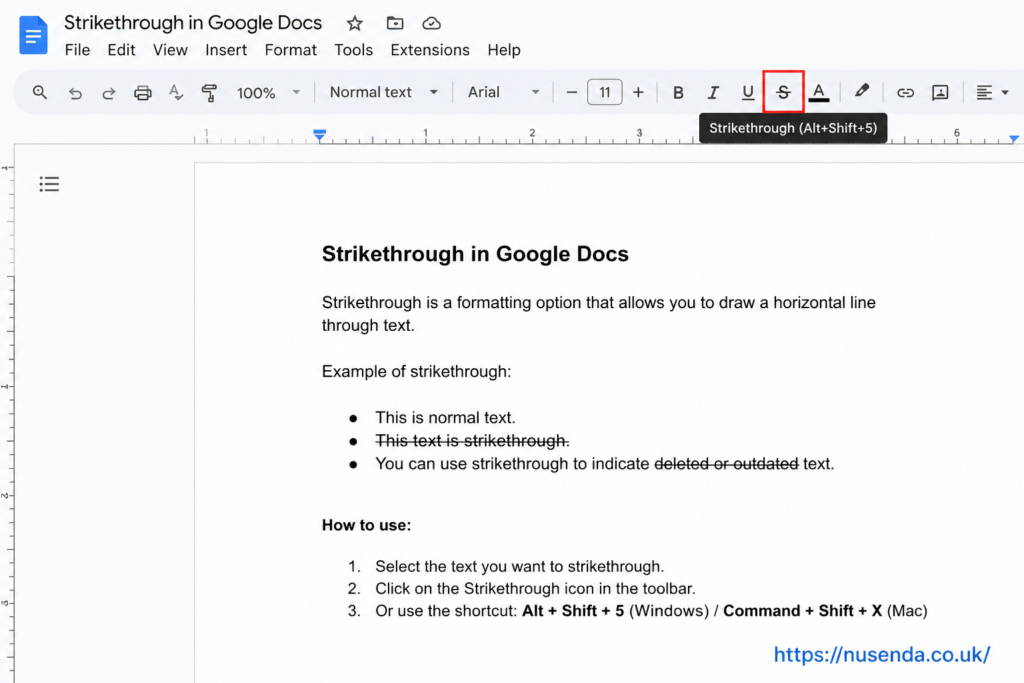
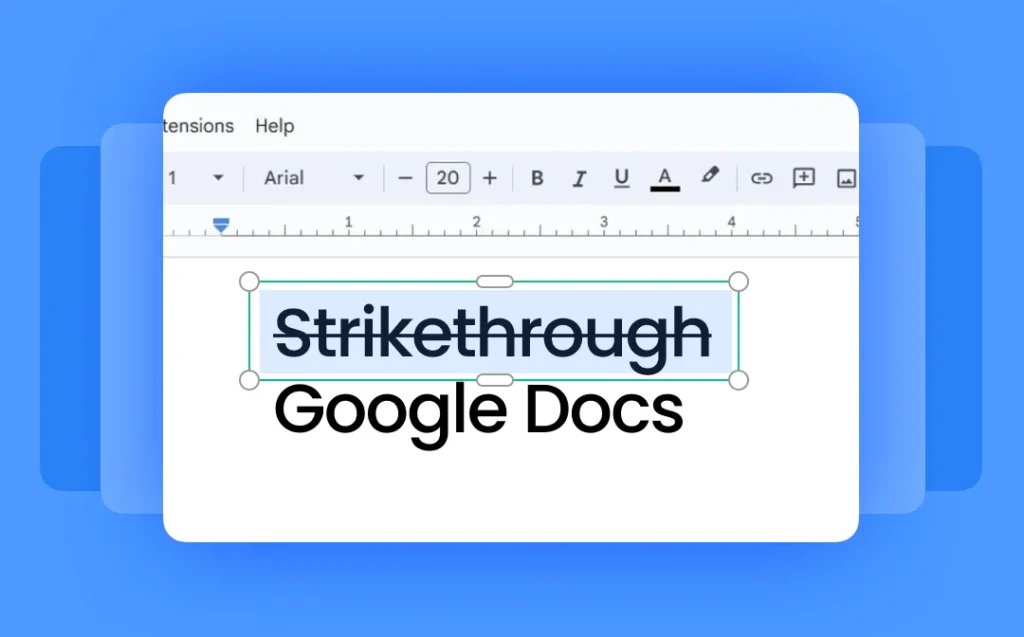
Strikethrough is a text formatting option that draws a horizontal line through your text. Instead of deleting words, you visually mark them as no longer relevant.
Think of it as saying: “This was here before, but it’s not needed anymore.”
It’s especially helpful when:
- Editing drafts
- Collaborating with others
- Keeping track of revisions
- Managing task lists
How to Add Strikethrough in Google Docs
Let’s get straight to the practical part.how you actually do it.
Method 1: Using the Menu
This is the most straightforward way:
- Highlight the text you want to strike through
- Click on Format in the top menu
- Go to Text
- Select Strikethrough
Done. Simple and reliable.
Method 2: Keyboard Shortcut (Faster Way)
If you want to save time (and you should), use shortcuts.
- Windows / Linux:
Alt + Shift + 5
- Mac:
Command + Shift + X
Once you start using shortcuts, you’ll never go back to menus again.
Why Use Strikethrough Instead of Deleting?
You might be thinking: why not just delete the text?
Here’s why strikethrough google docs is better in many situations:
Keeps a Record of Changes
When collaborating, others can see what was removed.
Improves Communication
It shows your thought process instead of hiding it.
Helps with Editing
Writers often strike through sentences before refining them.
Great for Task Lists
There’s something satisfying about crossing off completed tasks.
Real-Life Uses of Strikethrough
This feature isn’t just for writers or editors. It has everyday applications too.
For Students
- Editing essays
- Reviewing notes
- Highlighting corrections
For Professionals
- Draft revisions
- Meeting notes
- Project planning
For Personal Use
- Grocery lists
- Daily to-do lists
- Habit tracking
It’s a small tool, but incredibly versatile.
Strikethrough and Collaboration
One of the best things about strikethrough google docs is real-time collaboration.
When multiple people are working on the same document, strikethrough becomes even more valuable.
How It Helps Teams
- Shows edits without confusion
- Avoids accidental deletions
- Makes discussions clearer
- Keeps document history visible
Instead of asking, “What changed?”, you can literally see it.
Tips to Use Strikethrough More Effectively
Once you know the basics, a few smart tricks can make your workflow even smoother.
Combine with Comments
Strike through text and add a comment explaining why it was removed.
Use with Suggesting Mode
Instead of editing directly, switch to “Suggesting” mode and apply strikethrough for better clarity.
Don’t Overuse It
Too much strikethrough can make your document messy. Use it strategically.
Pair with Other Formatting
Combine it with bold or italics for emphasis when needed.
Common Mistakes to Avoid
Even simple features can be misused. Here are a few things to watch out for:
- Striking through entire paragraphs unnecessarily
- Using it instead of proper editing
- Forgetting to remove outdated text later
- Making documents hard to read
The goal is clarity.not clutter.
Strikethrough vs Other Formatting Tools
Let’s compare strikethrough with similar formatting options.
Strikethrough
- Shows removed or irrelevant text
- Keeps original content visible
Highlighting
- Draws attention to important text
Bold/Italic
- Emphasizes key points
Underline
- Adds importance but doesn’t indicate removal
Each has its place, but strikethrough is unique because it visually represents change.
Advanced Use Cases
If you want to go beyond basic usage, here are some creative ways to use strikethrough:
Content Writing
Draft multiple headline ideas and strike out weaker ones.
Coding Notes
Mark outdated code snippets while keeping them for reference.
Brainstorming
Write all ideas, then strike through the ones you discard.
Editing Workflow
Use it as a “soft delete” before finalizing content.
Why This Feature Matters More Than You Think
It might seem like a tiny formatting option, but strikethrough plays a big role in how we communicate digitally.
In a world where collaboration happens online, tools that improve clarity are essential. And strikethrough does exactly that.quietly but effectively.
FAQs About Strikethrough Google Docs
How do I remove strikethrough in Google Docs?
Simply highlight the text again and apply the strikethrough option or shortcut. It toggles on and off.
Can I use strikethrough on mobile?
Yes, but it’s slightly different. Tap the “A” (format) icon, go to text formatting, and select strikethrough.
Why isn’t the shortcut working?
Make sure your keyboard layout matches your system and no other app is overriding the shortcut.
Can I customize the strikethrough style?
No, Google Docs doesn’t allow customization of the line style.it’s fixed.
Is strikethrough useful for SEO writing?
Yes. It helps during editing and drafting, especially when refining keywords and structure.
Final Thoughts
Strikethrough in Google Docs is one of those features you might overlook.until you actually start using it regularly.
It’s simple, fast, and incredibly useful for editing, organizing, and collaborating. Once you build it into your workflow, it becomes second nature.
So next time you’re tempted to delete something, try striking it through instead. You might find it makes your work clearer.and your process smarter.